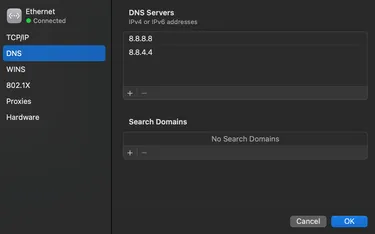
Changing Your DNS to Bypass Network Restrictions
If you are unable to access Wealth Proxies services, your network may be blocking certain domains through DNS filtering. Changing your DNS provider can often restore access.
Schools, workplaces, and some public networks often use DNS filtering as a way to block access to certain websites or services. Instead of blocking traffic directly, the network’s DNS servers simply refuse to resolve specific domain names (or redirect them to a block page).
This method is popular because it’s simple for administrators to enforce and works across all devices on the network. However, it can also cause issues for legitimate use — for example, when proxies or certain tools are incorrectly flagged and restricted.
By changing your DNS settings to a trusted, public DNS provider (such as Google or Cloudflare), you can often bypass these restrictions and restore normal access.
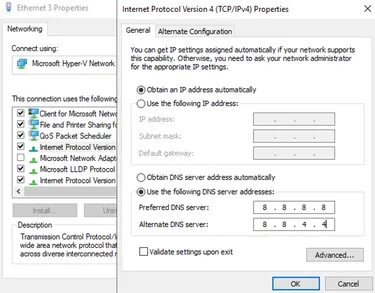
Change DNS on Windows:
Section titled “Change DNS on Windows:”- Open Start Menu, type Control Panel, click Enter.
- Go to Network and Sharing Center and click Change adapter settings (left sidebar).
- Right-click your active Network (Wi-Fi or Ethernet) and select Properties.
- Highlight Internet Protocol Version 4 (TCP/IPv4) and click Properties.
- Select Use the following DNS server addresses and enter your preferred DNS
- Google: 8.8.8.8 and 8.8.4.4
- Cloudflare: 1.1.1.1 and 1.0.0.1
- Optional: Repeat same steps under Internet Protocol Version 6 (TCP/IPv6)
Change DNS on Mac:
Section titled “Change DNS on Mac:”- Click the Apple Menu and click System Settings
- Go to Network and select your active connection (Wi-Fi or Ethernet)
- Click Details and open the DNS tab
- Click the + button and enter your preferred DNS
- Google: 8.8.8.8 and 8.8.4.4
- Cloudflare: 1.1.1.1 and 1.0.0.1